We have now updated the functionality for uploading packing data files to orders.
You will notice that the user interface has been slightly changed, but the previous functionality is still available. In addition, we have introduced a number of enhancements to improve efficiency and expand functionality.
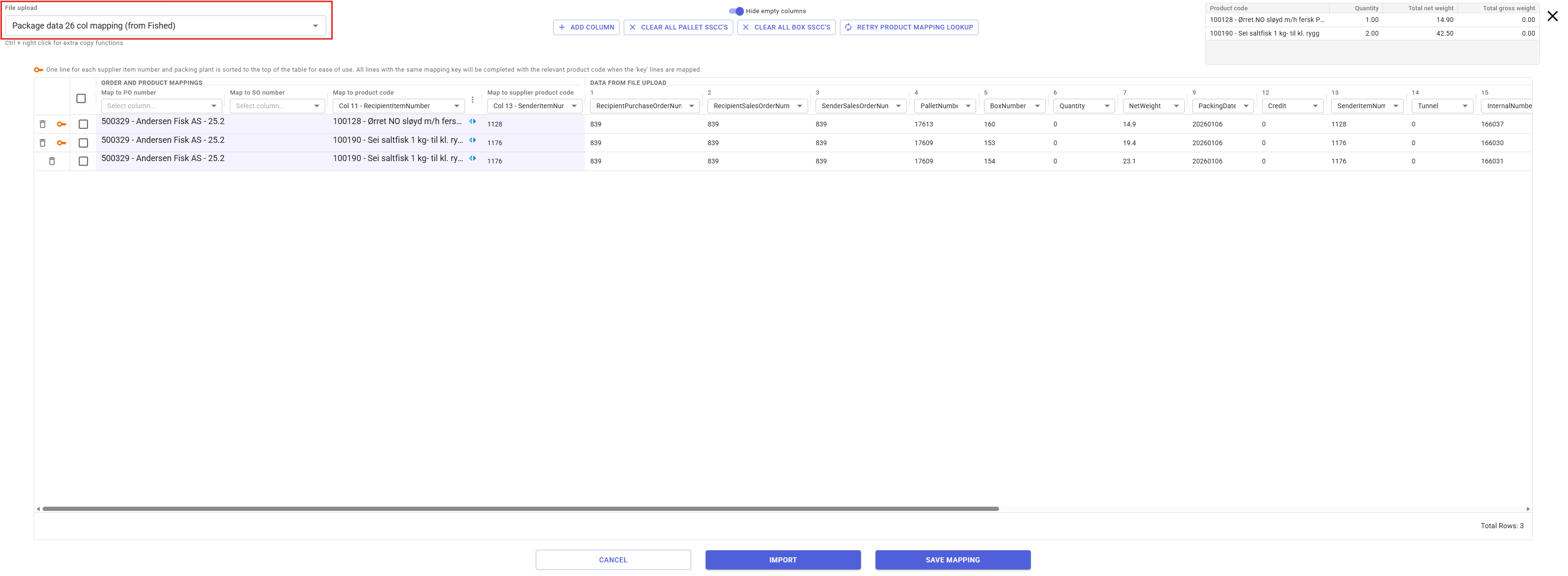
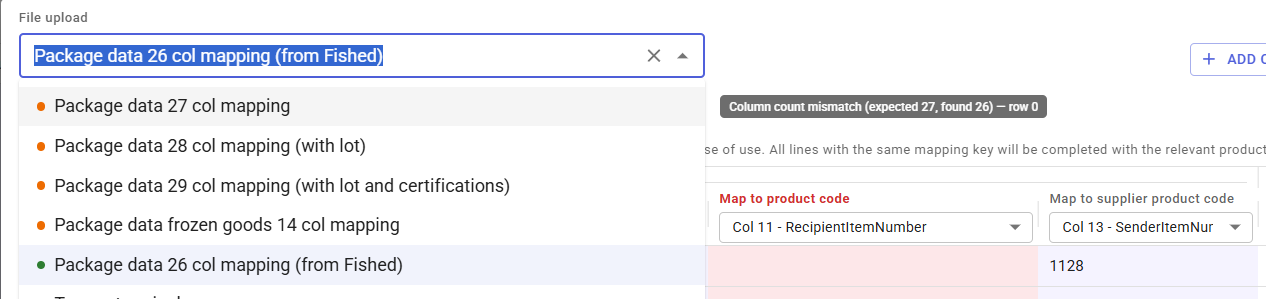
In the new view, you will find a dropdown menu in the top left corner where you can select between different mappings.
Fished will automatically attempt to identify the correct mapping. If this fails, or if it is a new configuration that has not been set up before, you can save your current setup using the “Save Mapping” button, allowing you to reuse it at a later time.
Fished will automatically attempt to identify the correct mapping. If this fails, or if it is a new configuration that has not been set up before, you can save your current setup using the “Save Mapping” button, allowing you to reuse it at a later time.
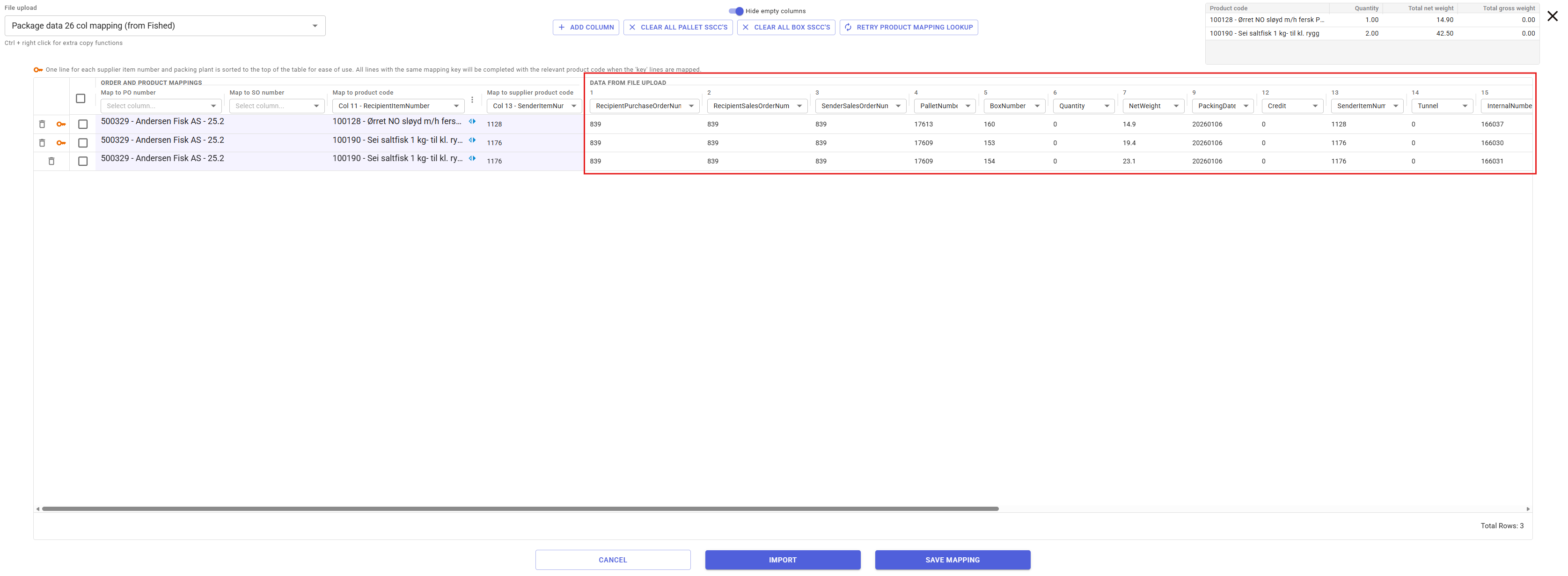
In the section “Data from file upload”, you will see the data extracted from the file. The column headers indicate which field in Fished the data will be mapped to. If you want the data to be placed elsewhere, you can adjust this.
However, keep in mind that the templates in the dropdown menu are based on previously uploaded files from customers in Fished, so changes may not be necessary. It is also possible to modify the data directly in this view if you need to edit the information before import.
However, keep in mind that the templates in the dropdown menu are based on previously uploaded files from customers in Fished, so changes may not be necessary. It is also possible to modify the data directly in this view if you need to edit the information before import.
When editing data, you can copy the values to other fields in the same column. This is done by pressing ctrl, and right click on the cell. Then you'll get these different options to copy the value to other cells.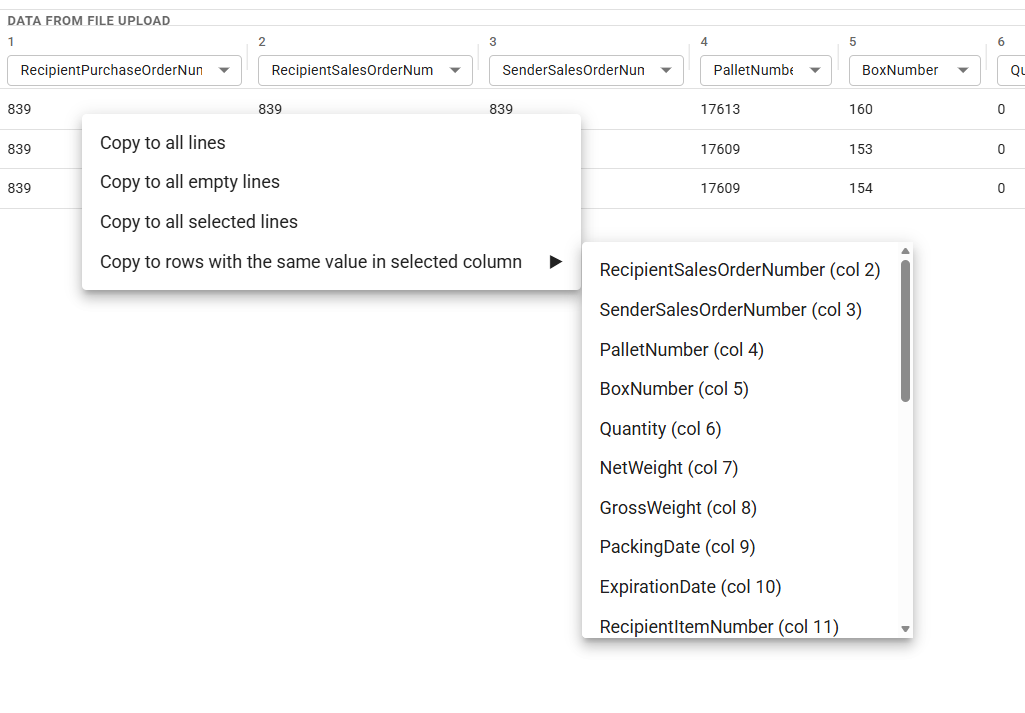
On the left-hand side, under “Order and product mapping”, you can see which orders are linked and how the product mapping is configured. This works as before, but now makes it easier to adjust which orders are associated with the upload.
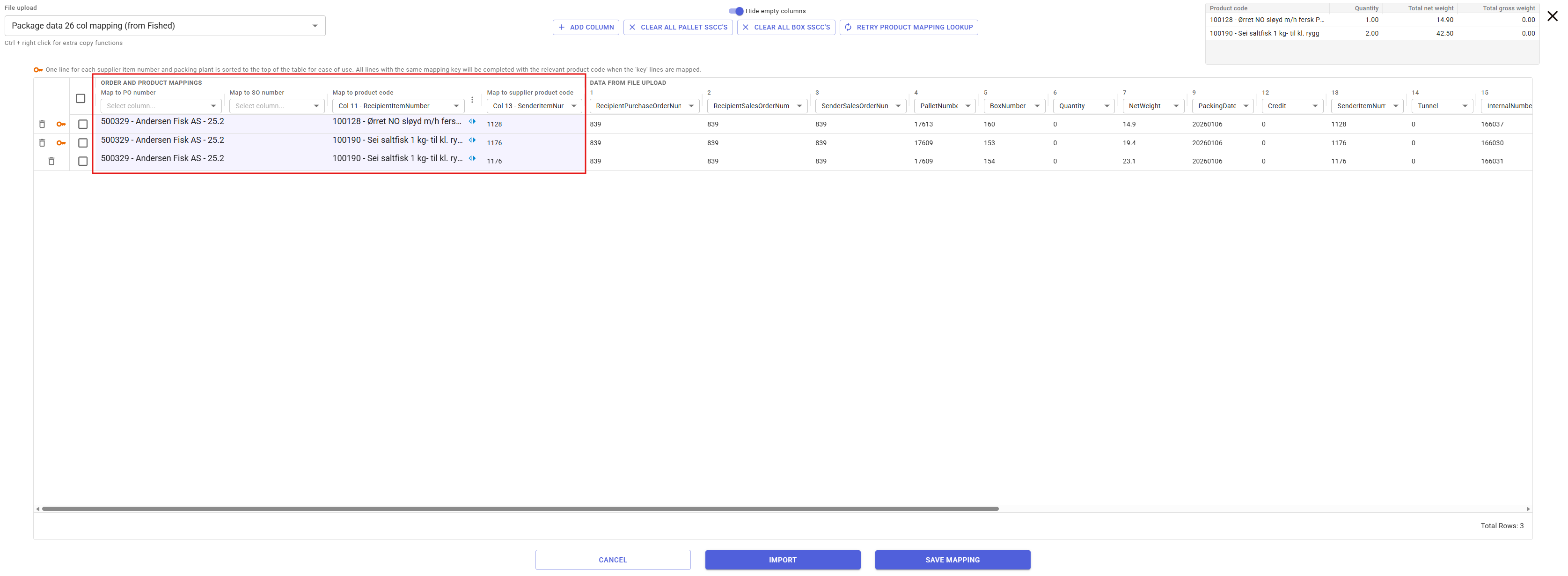
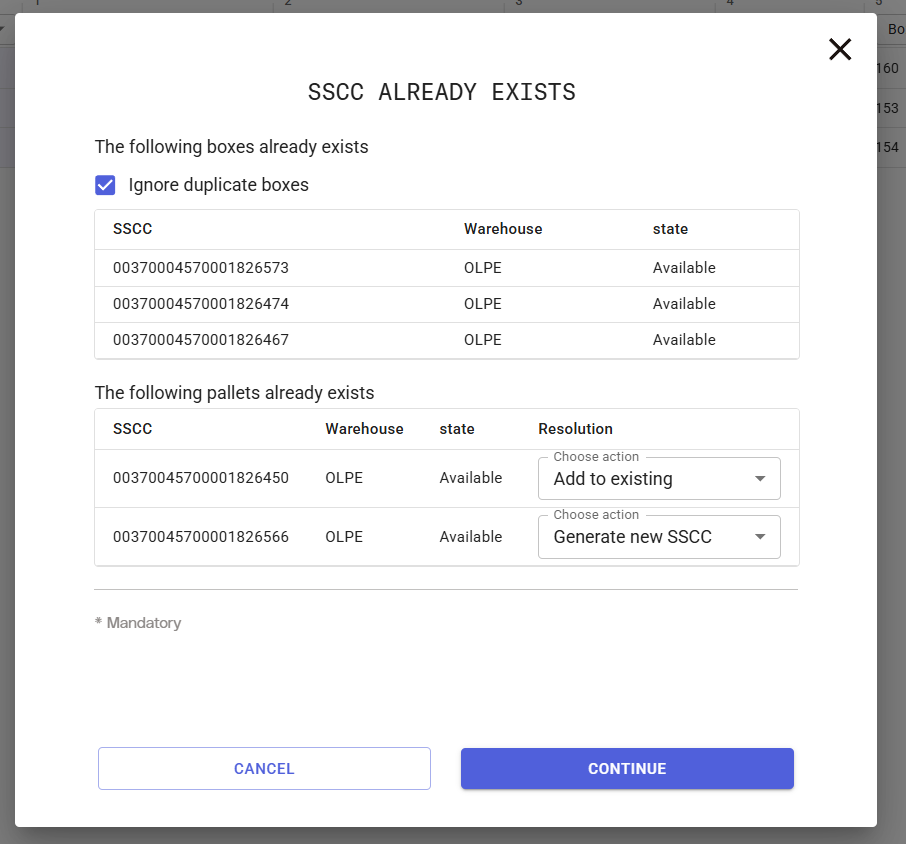
By clicking “Import”, you confirm the data and complete the import process. After this, a validation will be performed to check whether the SSCC is already registered in the system.
By clicking “Save Mapping”, you can store your configuration and optionally set it as the default for a specific supplier. It will then appear in the dropdown menu the next time you upload a packing data file.
Was this article helpful?
That’s Great!
Thank you for your feedback
Sorry! We couldn't be helpful
Thank you for your feedback
Feedback sent
We appreciate your effort and will try to fix the article