Logging In
Open your browser and go to your organisation's Fished address, CompanyName.fished.com. There is nothing to install — Fished runs entirely in the browser.
|
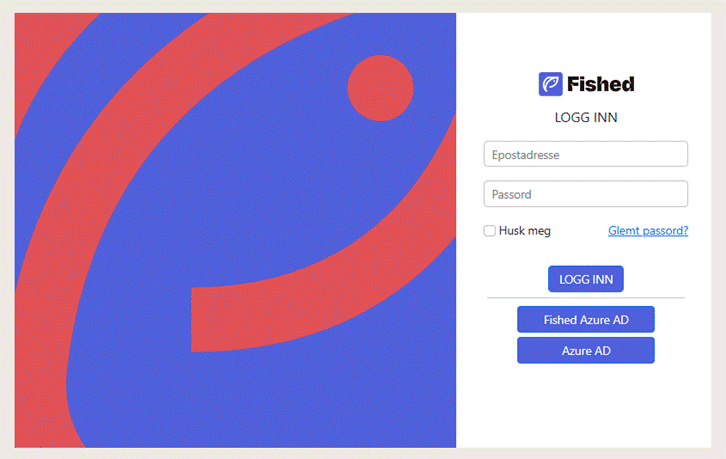
- Open your browser and go to your organisation's Fished address — CompanyName.fished.com.
- Click Azure AD.
- Or use your company email address and the password you have created.
- You are taken straight to the Dashboard.
? TIP | Logging in to Fished for the first time? Enter your company email address and click the Forgot Password link on the login page. A password reset link is sent to the registered email address within a few minutes. This applies only to first-time registration. After that, click the Azure AD button.
|
Pålogging
Åpne nettleseren og gå til organisasjonens Fished-adresse, CompanyName.fished.com. Ingenting skal installeres — Fished kjører i sin helhet i nettleseren.
|
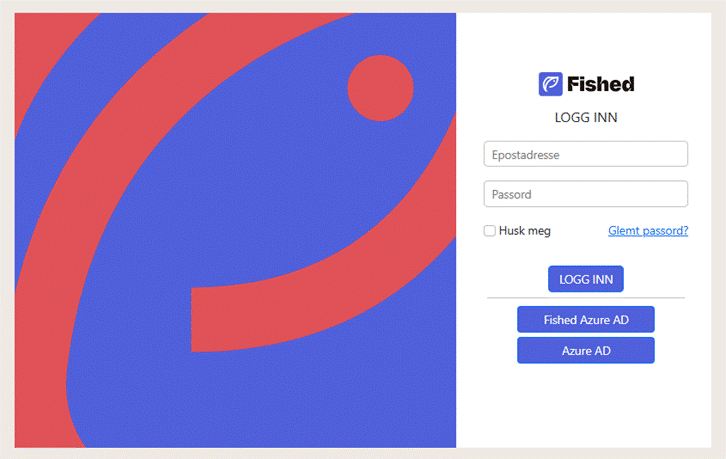
- Åpne nettleseren og gå til organisasjonens Fished-adresse – CompanyName.fished.com.
- Klikk Azure AD.
- Eller bruk e-postadressen din i selskapet og passordet du har opprettet.
- Du kommer direkte til oversiktssiden (Dashboard).
? TIPS | Første gang du logger inn i Fished? Skriv inn selskapets e-postadresse og klikk lenken Forgot Password (glemt passord) på påloggingssiden. En lenke for å nullstille passordet sendes til den registrerte e-postadressen i løpet av noen minutter. Dette gjelder bare ved førstegangsregistrering. Neste gang klikker du på knappen Azure AD. |
Was this article helpful?
That’s Great!
Thank you for your feedback
Sorry! We couldn't be helpful
Thank you for your feedback
Feedback sent
We appreciate your effort and will try to fix the article